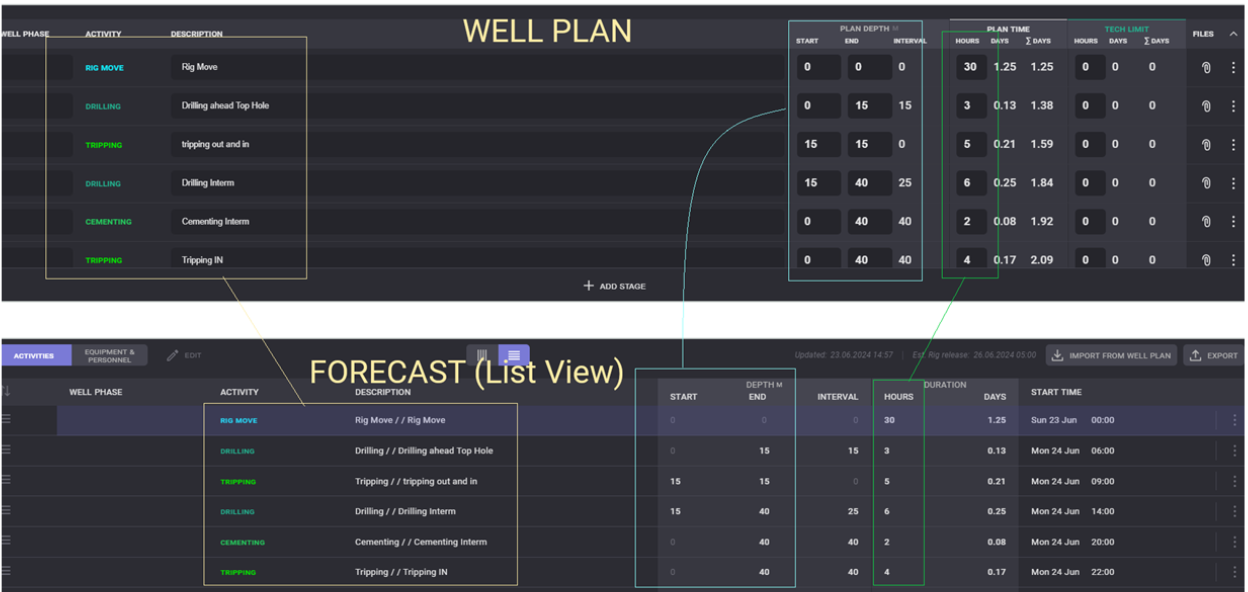

The New Forecast page is grouped under Planning along with the Well Plan page is because they can be linked to each other for improved connectivity and data synchronisation.

This is the New Forecast page, highlighting the new and enhanced features.
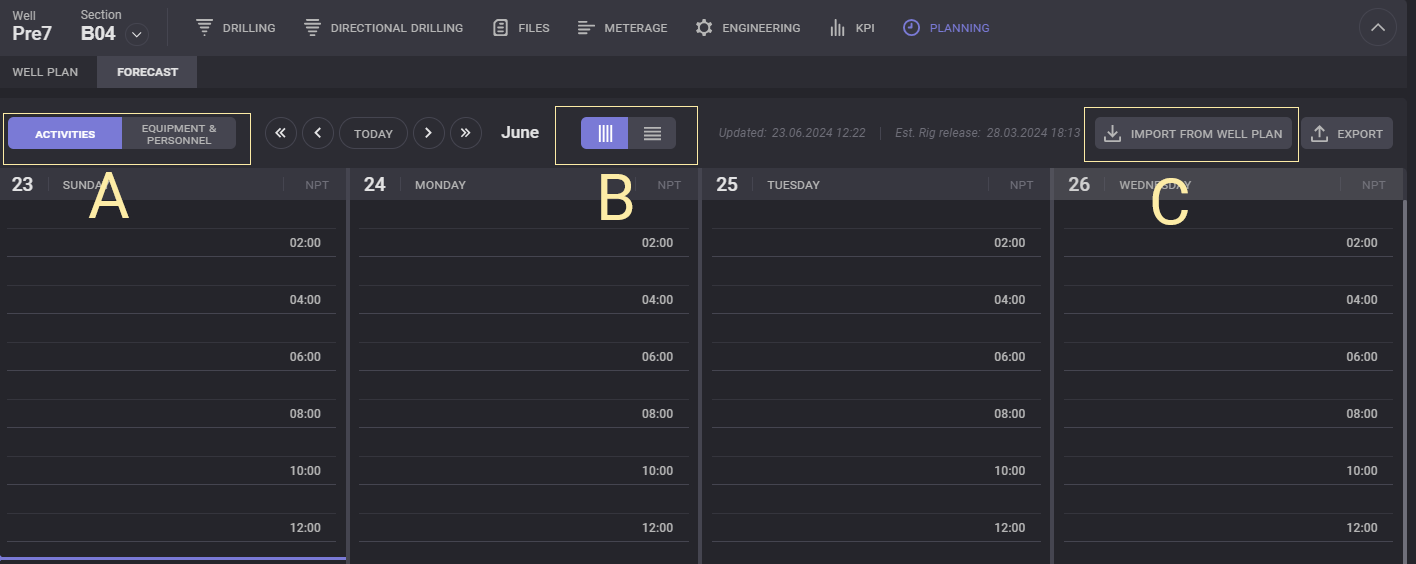
A. Activities / Equipment & Personnel 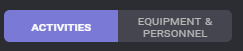
Users have the choice to view Activities and Equipment & Personnel on separate pages, providing a wider and improved viewing experience.
B. The Calendar and List View 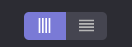
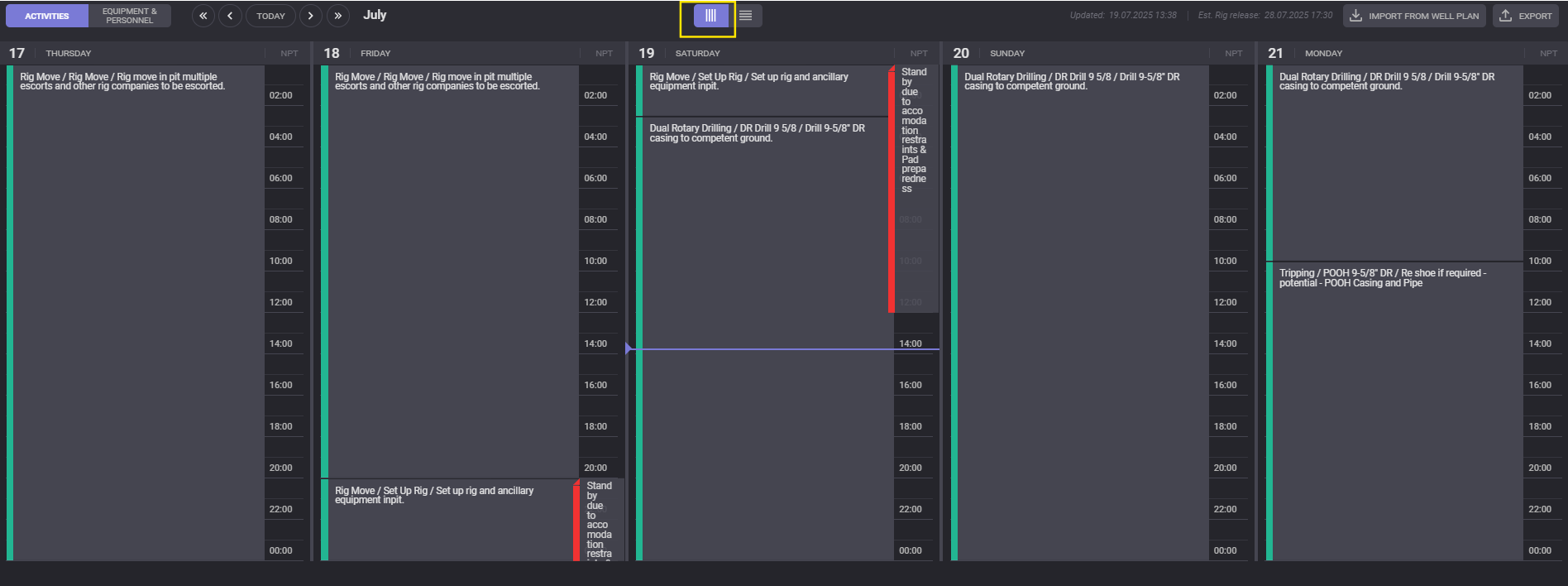
B.1 The Calendar View - It maintains the familiar appearance and functionality of the previous version. Refer to the screenshot below.
B.2 The List View - It shows a list of activities with their descriptions, depths, durations, and dates . Screenshot below.
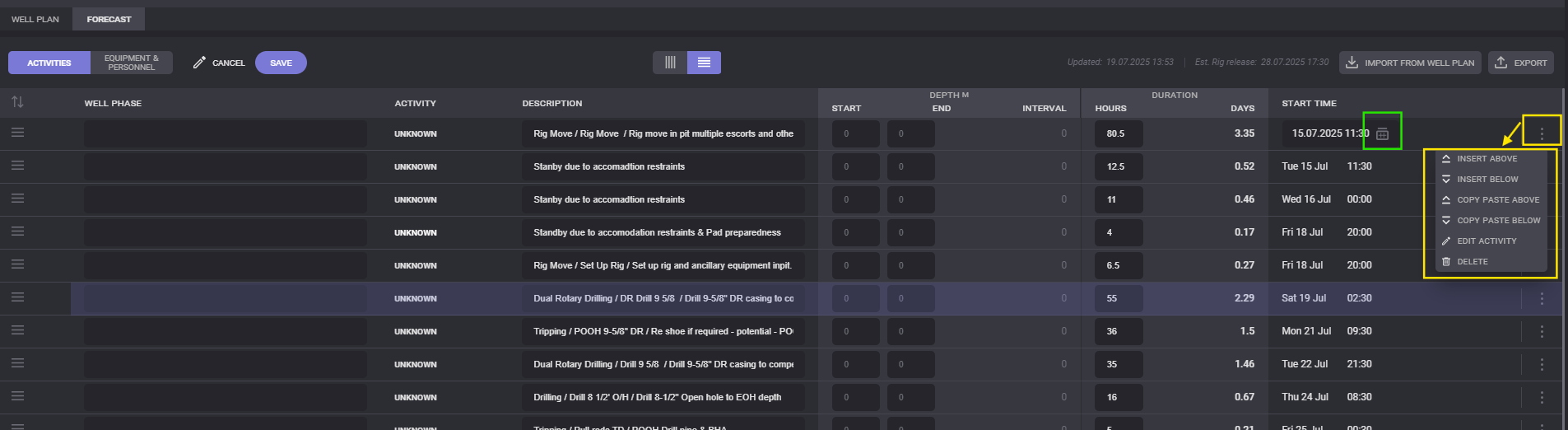
Clicking on EDIT enables the fields under WELL PHASE, DESCRIPTION, DEPTH, and DURATION to be edited, allowing for corrections or updates to be made in these fields.
START DATE - You can edit the start date by clicking the icon enclosed by the green box. Editing the dates will automatically adjust the succeeding dates based on the changes made.
EDIT ACTIVITY - To edit an activity, click on the Ellipsis icon, which will provide options such as inserting a record above or below, copying the record above or below, editing the activity, and deleting it. Please refer to the section enclosed by yellow boxes for guidance.
After making edits, click on the SAVE button located above. The edited details will also be reflected in the Calendar view.
C. Import From Well Plan - 
Clicking that button will update the well plan to be reflected in the forecast.
Steps to Import:
1. Click Import From Well Plan.
2. A message box will appear indicating that the current forecast will be replaced by the details from the well plan. Simply click OK, and it will update the forecast accordingly.
To verify, you can easily compare the well plan against the forecast (in list view) as demonstrated below.