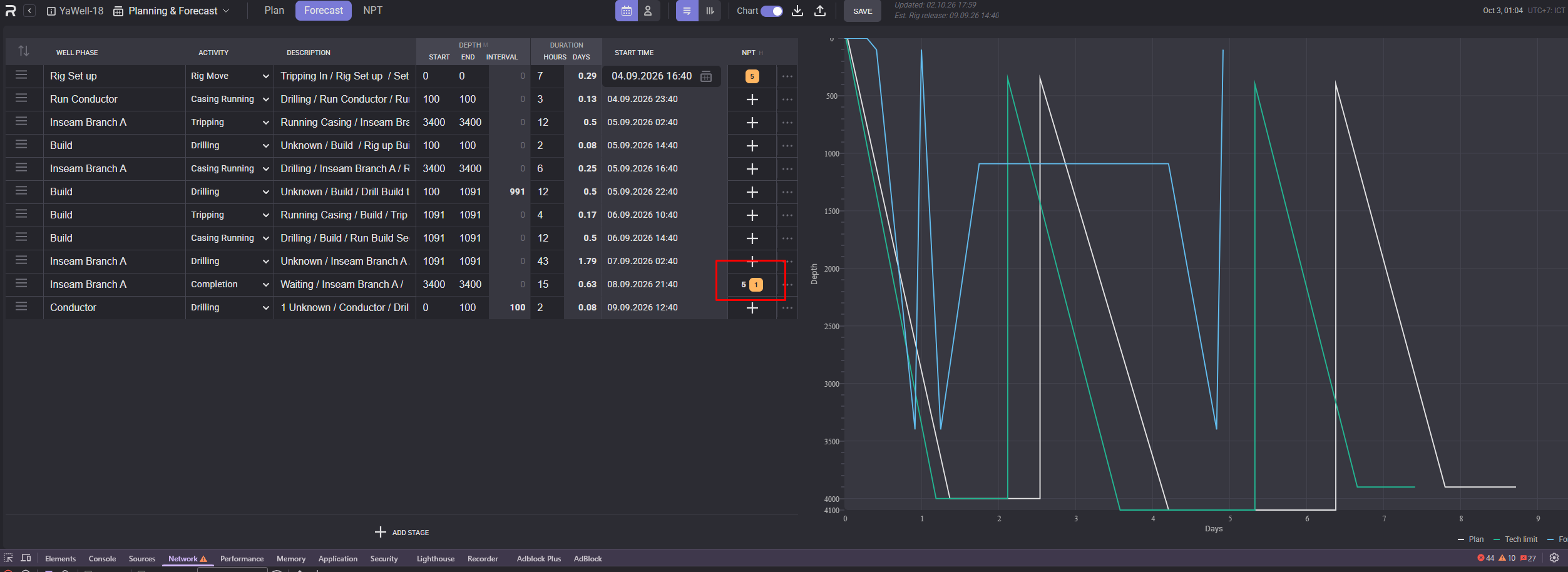

On the Planning tab of the Portal well planning and drilling forecasting are available. This option allows creating safe, efficient well trajectories and predicting operational timeframes. Geological data, offset well histories, and rig capabilities are used to optimize operations and mitigate risks like non-productive time (NPT).
Planning of the well can be opened from the wells list by clicking on the plan icon next to the necessary well.

The list of all plans can be opened from the side menu.
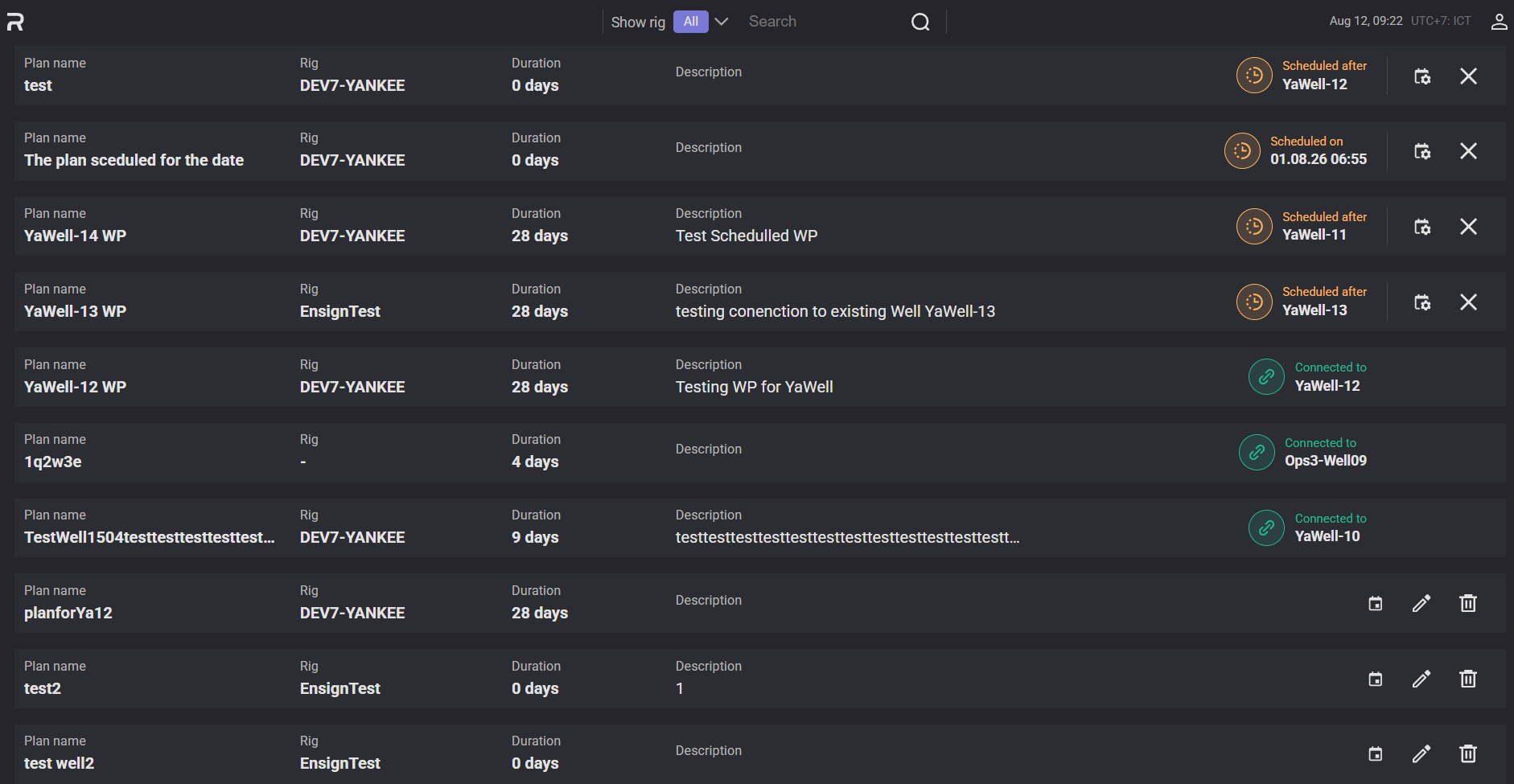
The plans list contains active, scheduled, and draft plans.
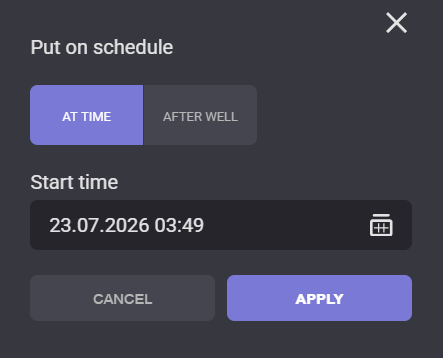
Scheduled and draft plans schedule settings can be changed. To change the schedule of the plan, click on the calendar icon 

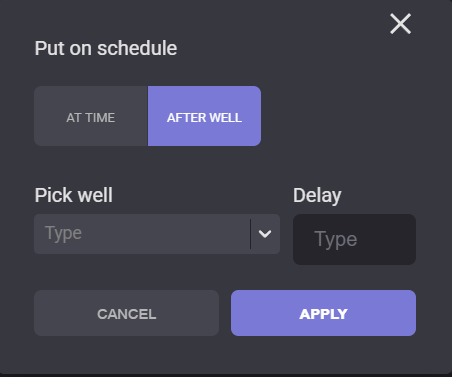
To view the plan click on it in the list.
Plan
The planning tab contains the planned dependency of drilled depth on the days and table of the drilling activities.
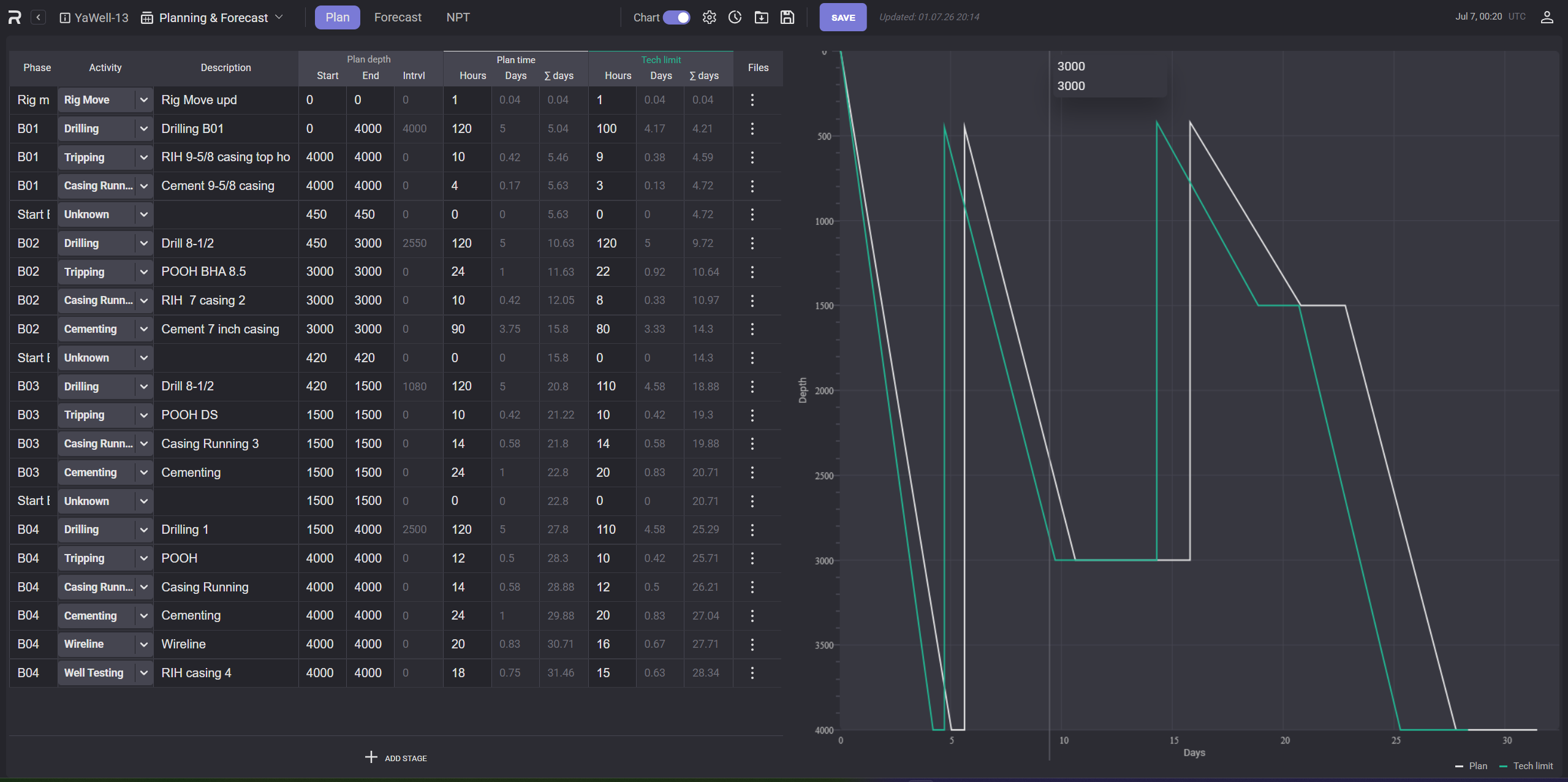
The table data can be edited. To change the phase activity click on the activity cell and select tactivity from the drop-down list.
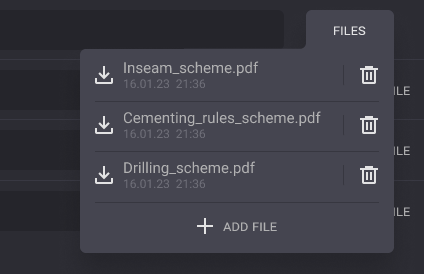
Attachments can be added to any activity by clicking on Attach File button. In the opened dialog click on the Add File. Attached files can be removed in the add file dialog.
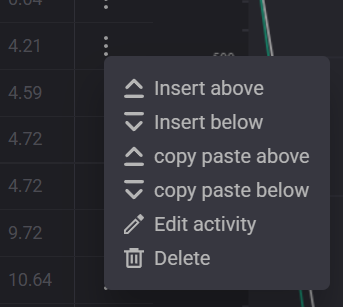
In the activity properties, the order of the activity can be changed, copied, edited, and deleted.
Click on the Version history displays the list of revisions with date of publication, author and additional comments. The version can be reverted by clicking on the Restore button in the row. Click on the Delete button removes the version from the history.

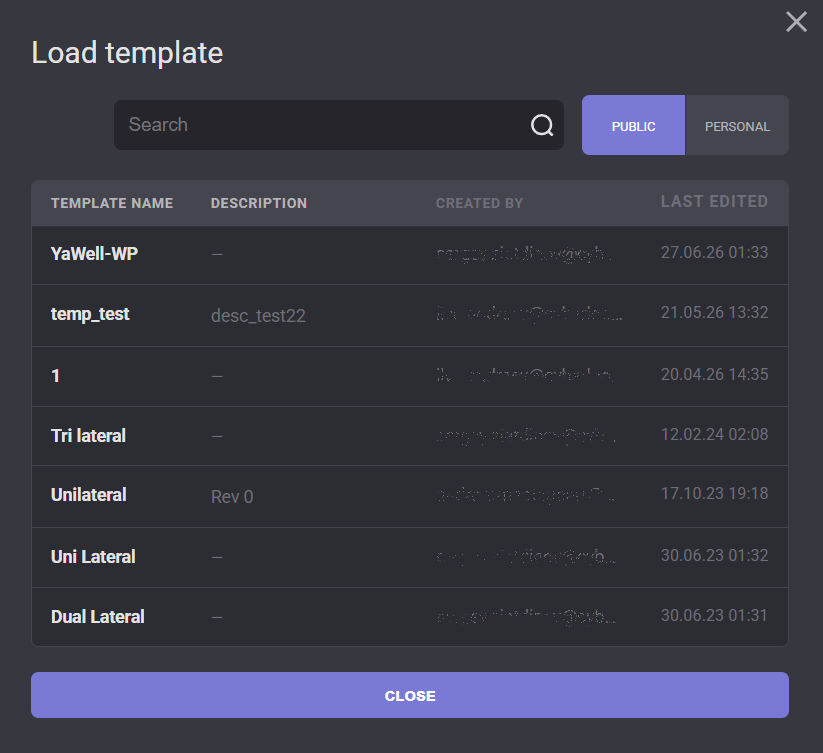
To create a Plan for the well, click on the create plan icon next to the well without plan in the wells list 
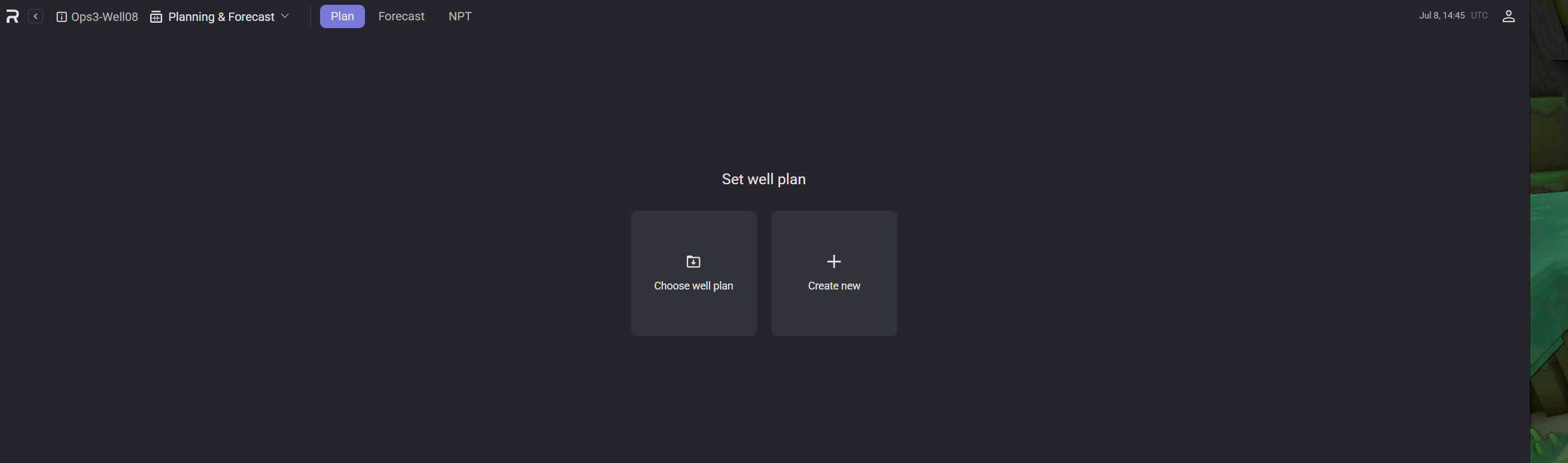
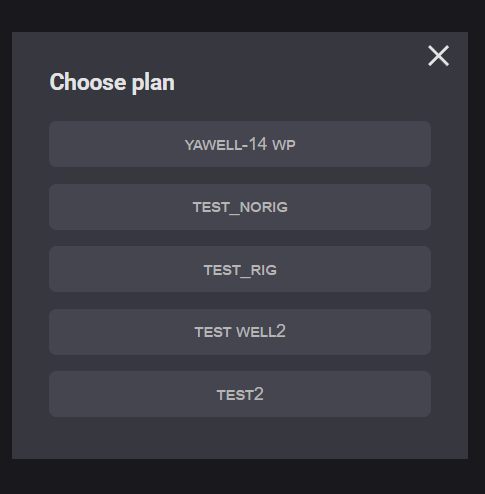
If the “Choose well plan" option is selected, the list of existing plans will be opened. Click on the plan will create plan for the well with all phases from the selected template plan.
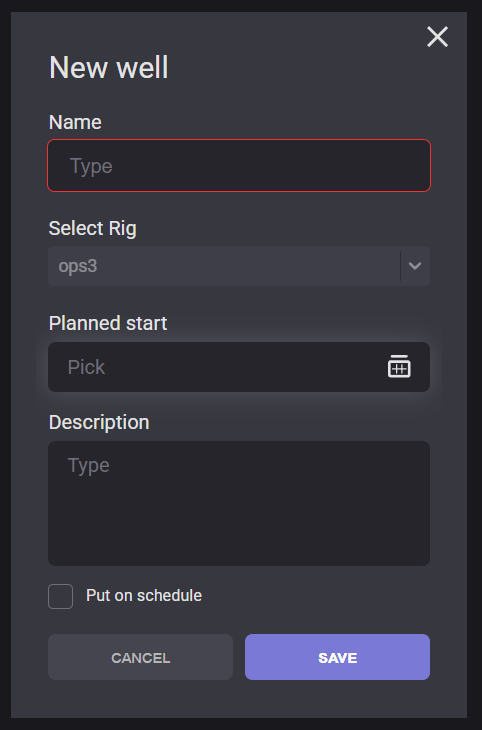
Selecting “Create new“ opens New
Forecast
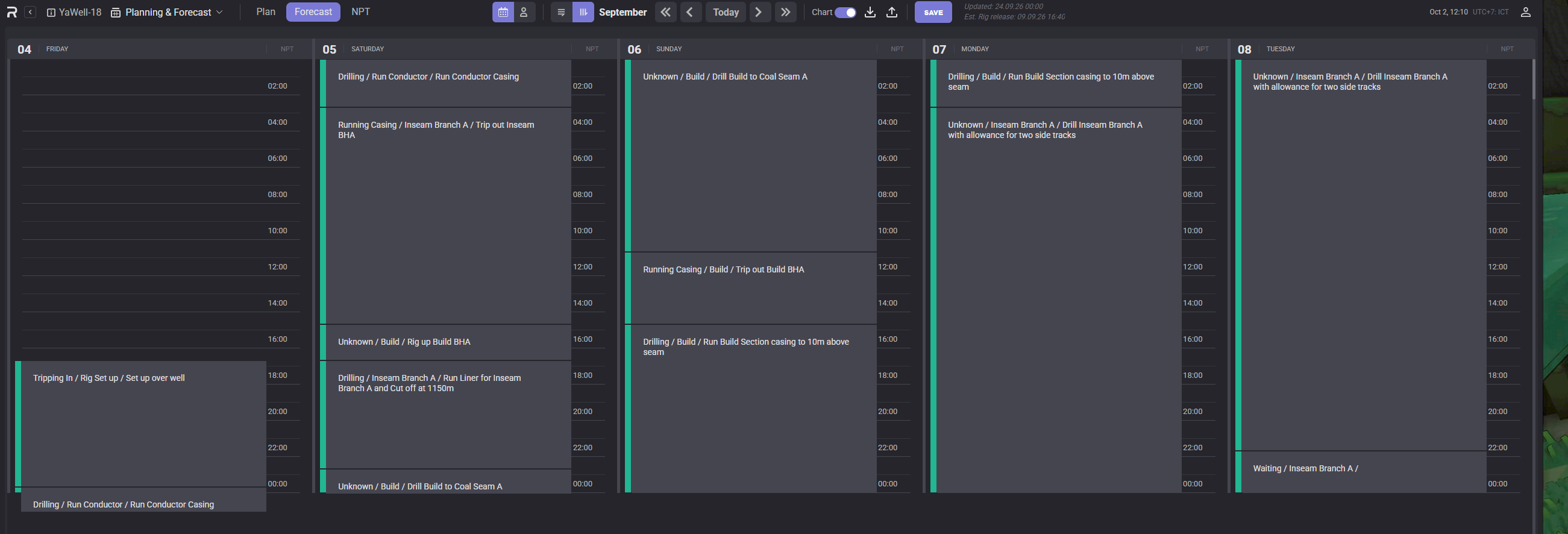
On the forecast can be predicted drilling process. Processes distribution for the nearest 5 days displayed on the forecast calendar. Planned drilling processes can be added, removed, or edited.
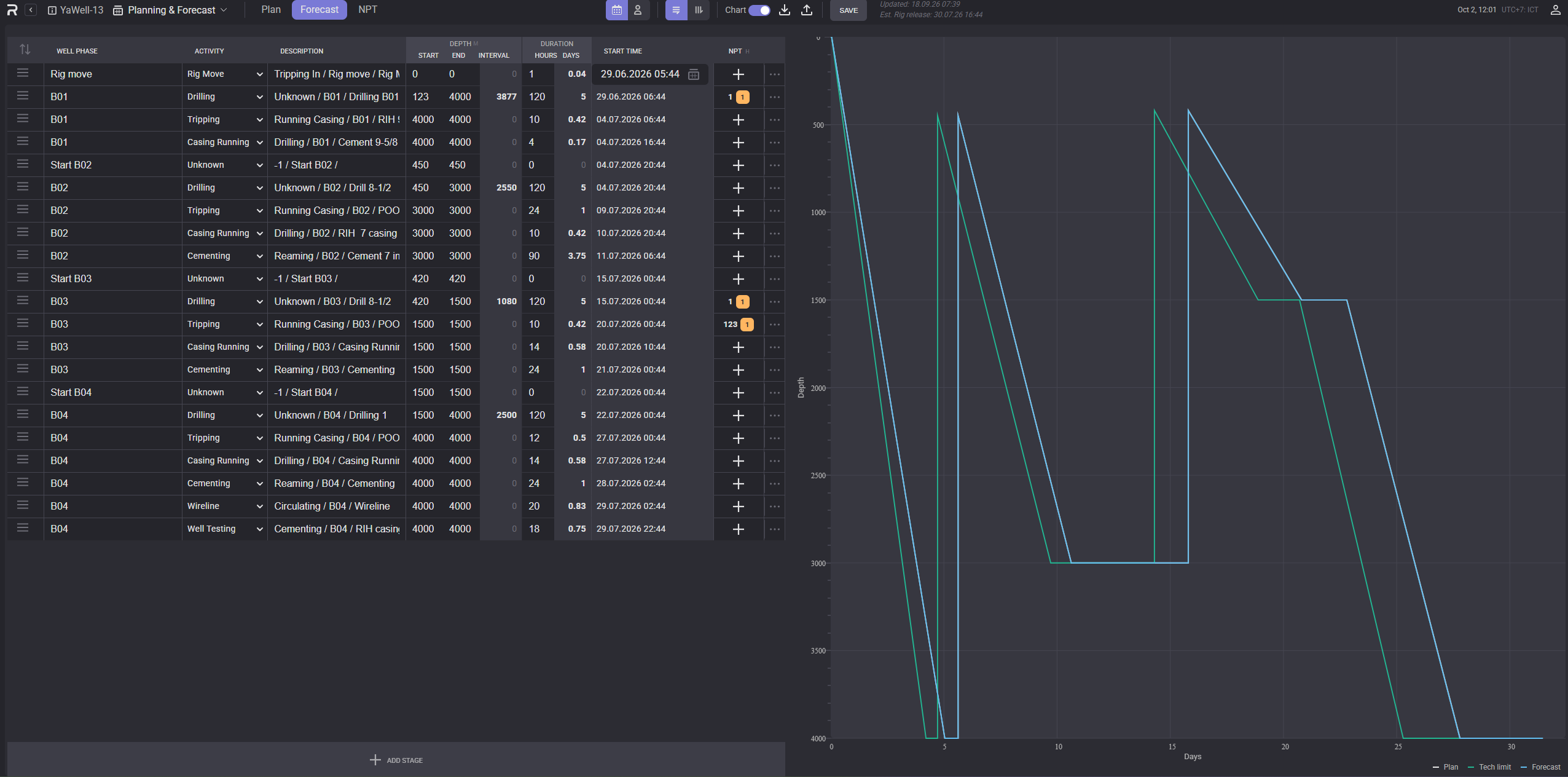
To change view from the list to calendar use view switcher on the top panel 
To add, edit or remove the well phase, click on the three dots of the row to be edited. List of available actions will be expanded.
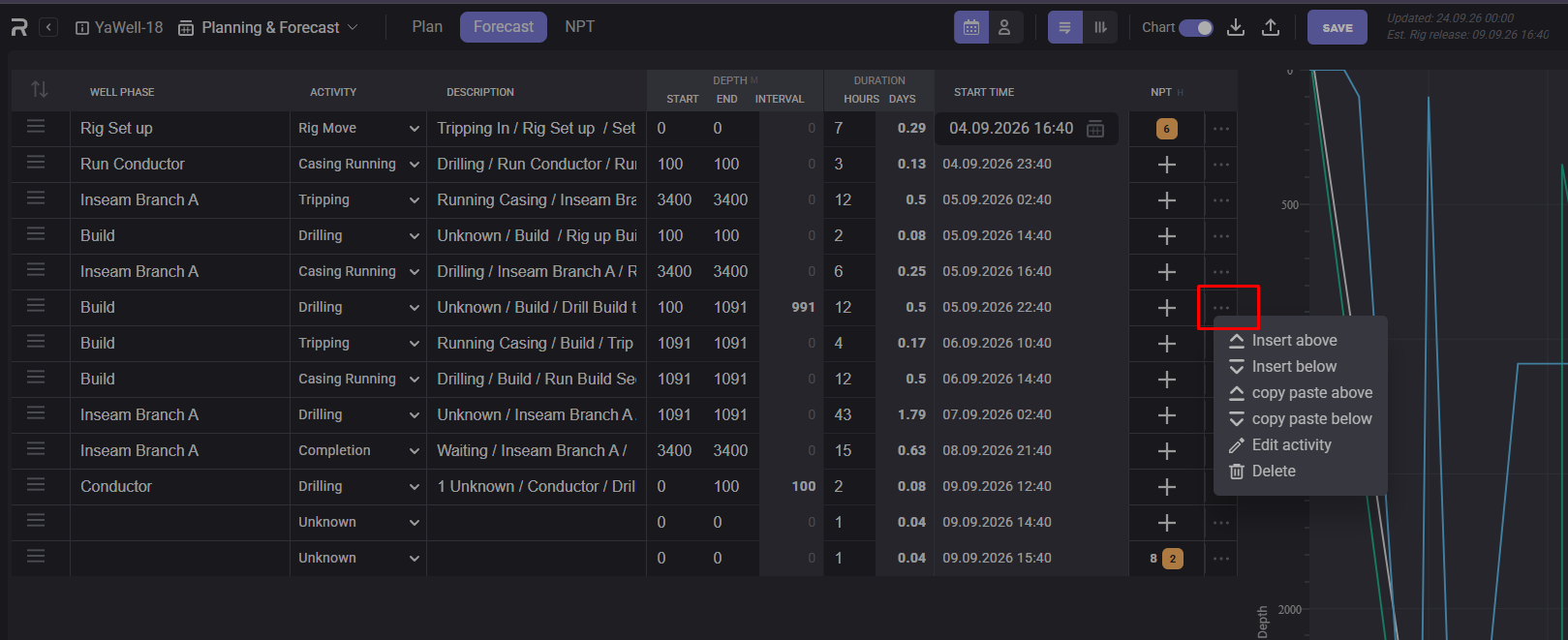
Insert above action will add new process card above the selected process.
Insert below action will add new process car below the selected one.
The Edit option allow to change the color, description, and timing of the process.
Click on the Delete option to remove the process from the list.
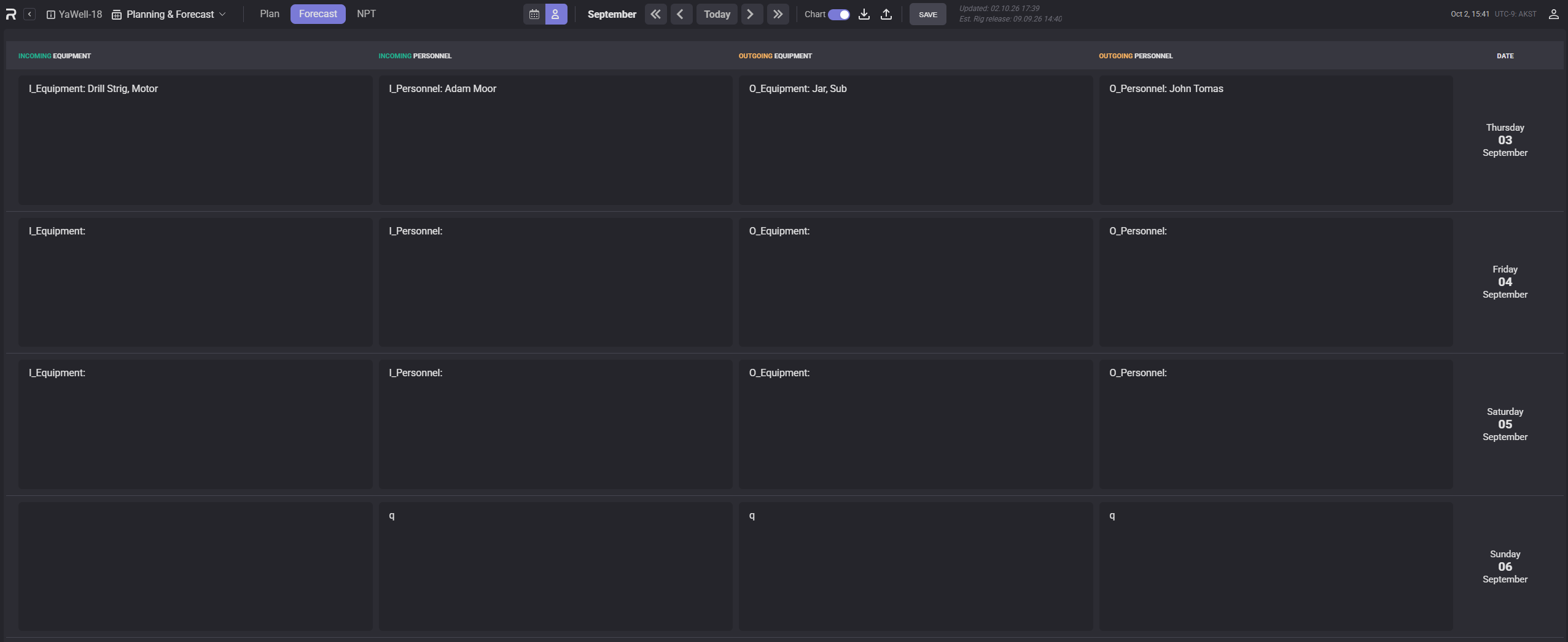
To switch the view from the Activities to Equipment & Personnel, use the switch on top panel 
NPT
To record Non-Productive Time (NPT) in the planning, use the NPT tab. Click on “+“ to Add NPT and fill in NPT Ref, Start date and time, Total Hours, Total cost, Title and Event type.
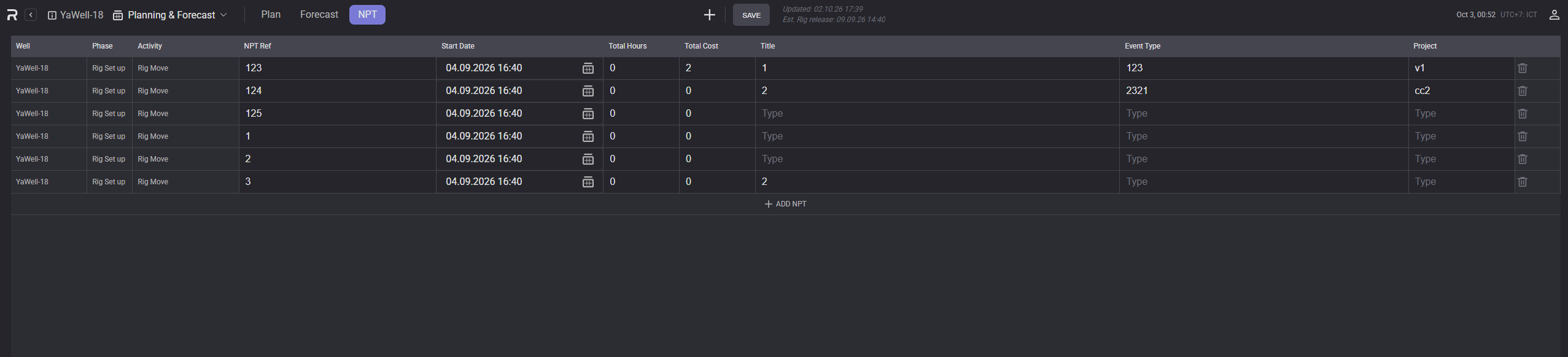
After saving the NPT list, created npt will be displayed in the forecast table next to the corresponding to the npt date well phase.