

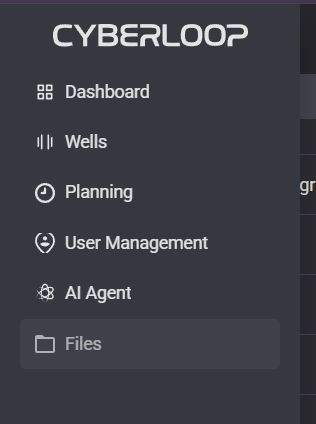
Files tab can be used for fast management of the uploaded files. To view list of all uploaded files, select the Files tab in the sidebar menu.
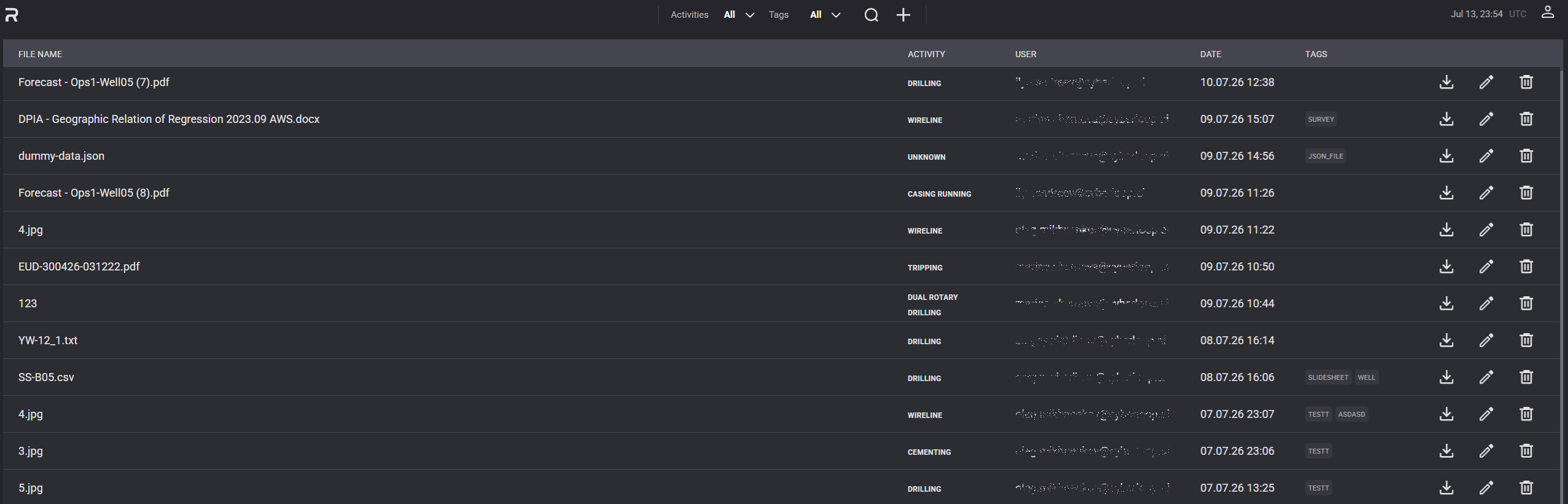
The list of files is sorted by the add date. It shows the drilling activity the file is linked to and the user uploaded the file. Uploaded files can be downloaded, edited, or removed.
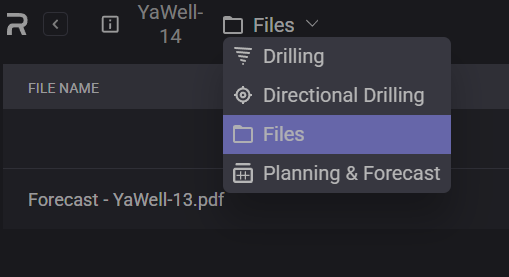
To view the files linked to the specific well, select the Files option in the drop-down list next to the well name.
To upload the file to the well, click on the Add new file button on the top panel.

In the opened dialog, select the file to be uploaded on the local machine, edit the name of the file if necessary, and select the activity from the drop-down list. The tag can be defined optionally.
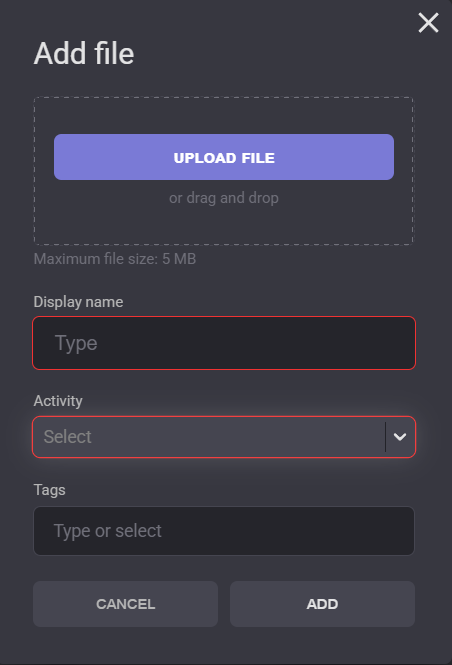
To add a tag to the file, enter the tag name in the “Tags” field or select the existing tag from the appeared drop-down list.
Click on the Add button closes the dialog and adds the new file to the list.